AI Tools I use daily
Introduction
I always like to see which tools people are using in their day to day activities. In the past I watched for the blog posts from Scott Hanselman and the tools he is using. He has not published any new list of tools lately, but one of the latest tools he showed during our internal Microsoft MCAPS Tech Connect event was Handy. It is a free and open source app for speech to text, which I use to use my voice to create prompts for the different AI tools I use. Try it out!
Being now part of the new Microsoft Frontier Company and using AI in almost all my day to day activities, I think it’s time that I share which AI tools I’m currently using in my day to day work. For now I’ll mostly focus on the commandline tools, because using a terminal feels quite natural when you want to interact with AI and their Agents. And since I started using PowerShell many years ago I fell in love with how you can use commandline tools to automate all kinds of workflows.
One of the current people I monitor for the tooling they are using is Simon Willison. According to Wikipedia (did you already donate?) Simon is a British programmer, co-founder of the social conference directory Lanyrd, and co-creator of the Django Web framework). Also from Wikipedia, he released a command-line tool for accessing LLMs via remote APIs or locally installed models. His LLM tool allows users to run prompts directly from the terminal and build applications like image search engines. Long story short, if you are into AI, you should definitely subscribe to his newsletter.
So without further delay here is an overview of what I find the most interesting AI tools I currently use at my work (and sometimes at home 😁)
Github Copilot CLI
The Github Copilot CLI is what I’ve open when I start the day. I start the Windows Terminal with PowerShell Core as the default shell and type
1
copilot --banner
Who does not loves the Github Copilot banner?
1
2
3
4
╭─╮╭─╮
╰─╯╰─╯  Copilot v1.0.80 uses AI.
█ ▘▝ █  /experimental
 ▔▔▔▔
GitHub Copilot CLI is a powerful terminal-native AI coding assistant that brings agentic capabilities directly to your command line. Each time I just have a quick question I want an answer on I just type this in the Github Copilot chat window.
Github Copilot CLI Tips:
- Use slashcommand chronicle (/chronicle) to get insights in your sessions. (e.g /chronicle tips)
- Want to know the model ids from the models that are available in your Github Copilot CLI? See this LinkedIn post. I will explain in another tool why you would want this.
UV
Since using AI I also had to learn to use Python besides PowerShell. Python has emerged as the dominant programming language for Artificial Intelligence (AI). As soon as you start working with Python you also have to think about managing Python environments and Python Packages. Python Packages are similar to Modules in PowerShell (or that is how I look at them).
So how does UV help with managing Python environments and Packages? UV is a single tool to replace pip, pip-tools, pipx, poetry, pyenv, twine, virtualenv, and more. And it’s extremely fast. Did I already say it is extremely fast??
UV Tips:
- Create a new Python Environment:
uv venv .venv - Install Python Packages:
uv pip install llm-microsoft-foundry
This will install the LLM plugin for Microsoft Foundry models. More about that in the LLM tool description.
LLM
This one of the many tools from Simon Willison I enjoy to use. Instead of using Github Copilot CLI to interact with AI Models, LLM is an cli tool and Python library for interacting with OpenAI , Anthropic’s Claude , Google’s Gemini , Meta’s Llama and dozens of other Large Language Models, both via remote APIs and with models that can be installed and run on your own machine.
LLM Tips:
It has support for plugins, and that’s why I was able to create a LLM Plugin for Microsoft Foundry. After you have installed the LLM CLI tool you can install the plugin.
- Install a LLM Plugin:
llm install llm-microsoft-foundry
Test the Microsoft Foundry LLM Plugin:
llm -m foundry-gpt-5.4 'What is the capital of the Netherlands?' --system "you speak like a drunken pirate"Use a llama.ccp model:
llm install llm-gguf # install the llm-gguf plugin
llm plugin # show installed plugins
Run the model like this:
llm gguf register-model llama-phi-4-mini-reasoning C:\Temp\phi-4\Phi-4-mini-reasoning-UD-Q4_K_XL.gguf -a phi4mini

llm -m "C:\Temp\phi-4\Phi-4-mini-reasoning-UD-Q4_K_XL.gguf" "Give 5 names for my Microsoft Scout Crew"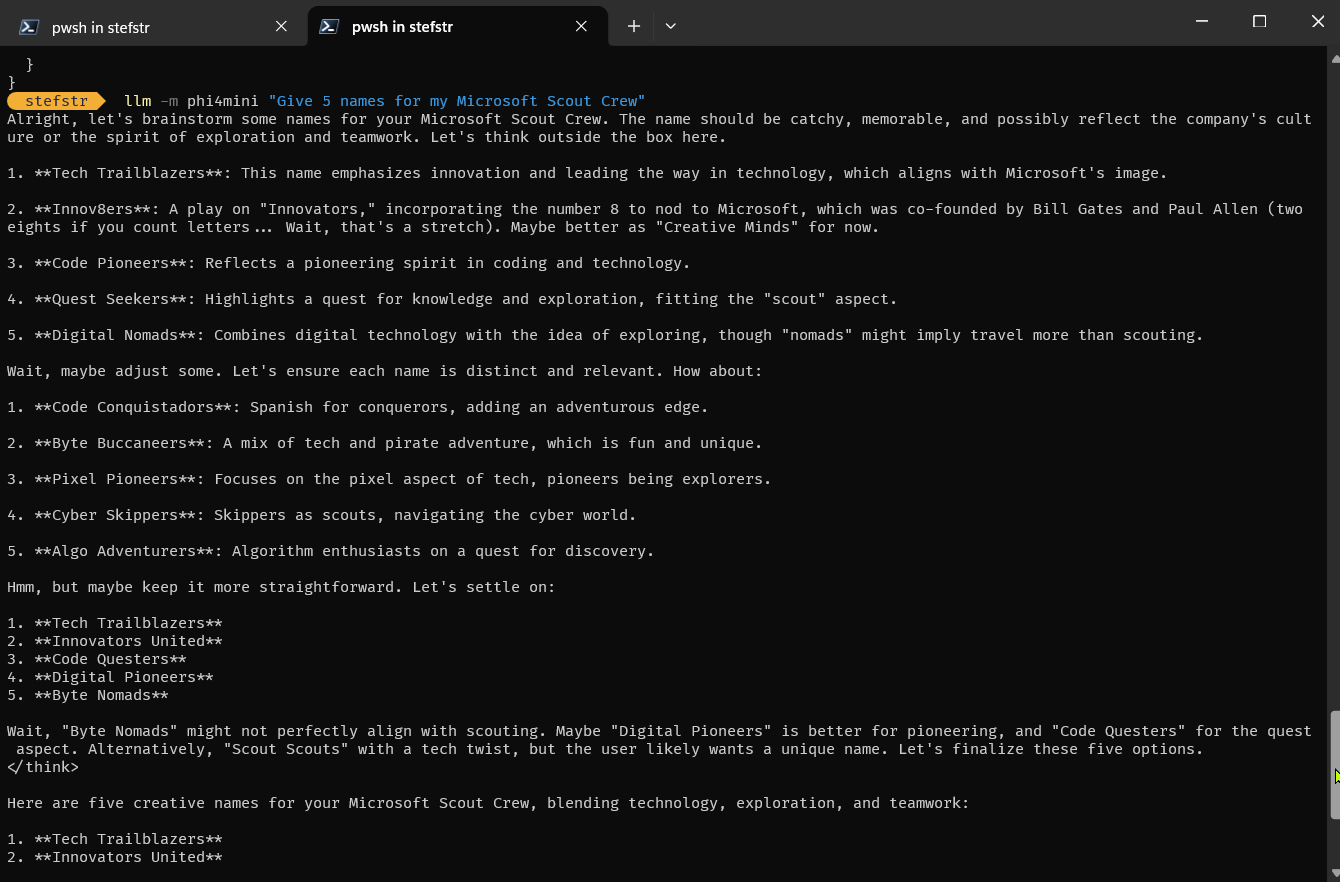
LiteLLM
Let’s first discuss the LiteLLM tool before I explain the llama.ccp app. LiteLLM is an open-source library that gives you a single, unified interface to call 100+ LLMs, using the OpenAI format.
I use LiteLLM mostly for providing an OpenAI format way to access models from Github Copilot CLI.
LiteLLM tips:
Configure the LiteLLM Provider for Github Copilot in the LiteLLM yaml config file:
# config.yaml
  model_list:
  - model_name: "gpt-5.6-sol"
      litellm_params:
      model: "github_copilot/responses/gpt-5.6-sol"
  - model_name: "mai-code-1.1-flash"
      litellm_params:
      model: "github_copilot/responses/mai-code-1.1-flash"
  - model_name: "grok-4.5"
      litellm_params:
      model: "github_copilot/responses/grok-4.5"

  general_settings:
master_key: sk-local-litellm
Start LiteLLM with Github Copilot Provider and models configured:
litellm.exe --config C:\Temp\litellm\config.yaml --port 4000 --host 127.0.0.1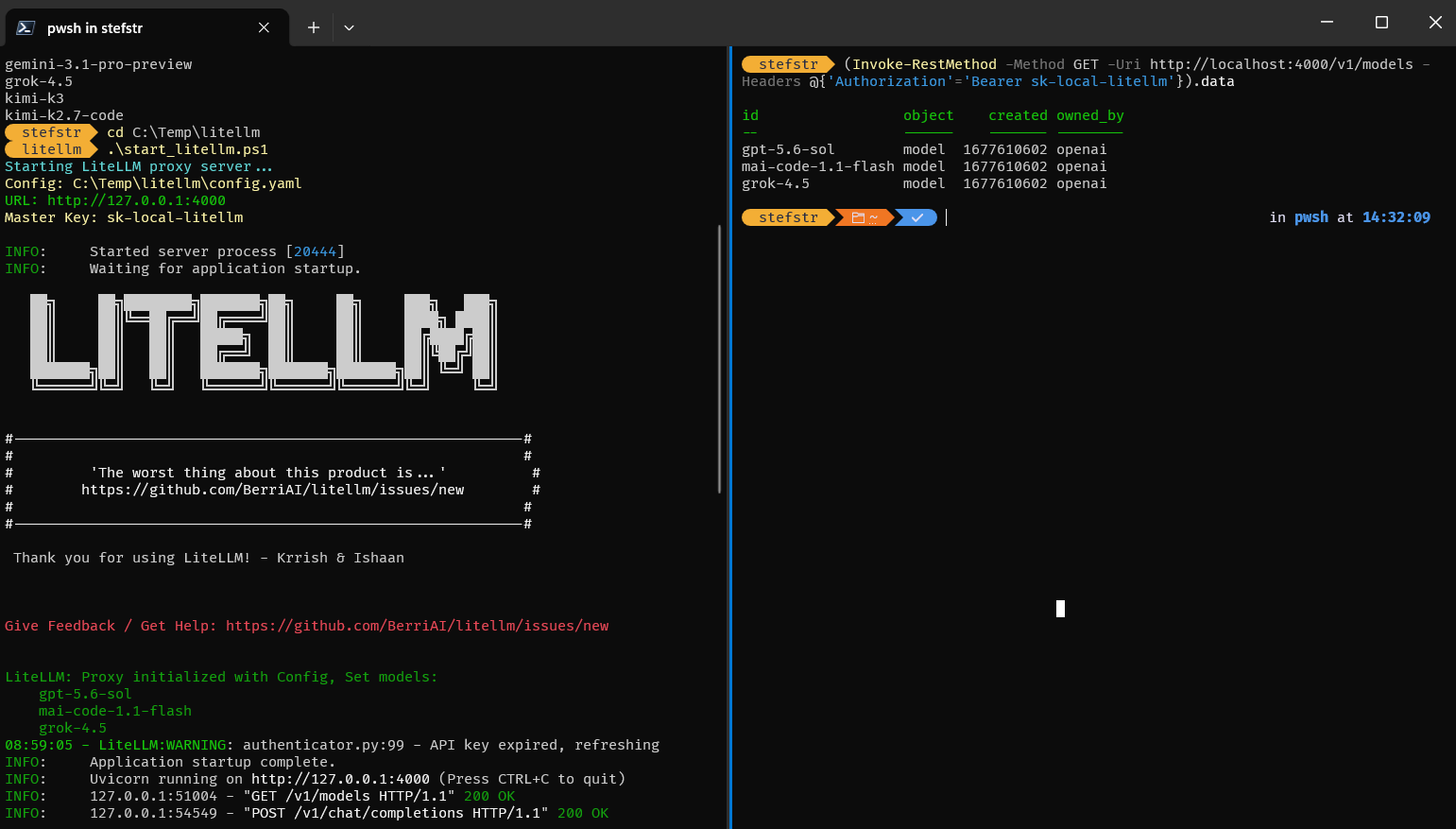
How to get the Github Copilot CLI model ids needed for the LiteLLM yaml configuration?
copilot help config | Select-String -Pattern '^\s{4}- "([^"]+)"$' | ForEach-Object { $_.Matches.Groups[1].Value }
llama.app
I already shared how you could use the LLM CLI tool to run models distributed as GGUF files. But you can also use the llama.ccp app to run AI models on your own machine. In my case I’ve Dell Laptop with 64 GB of RAM, which enables me to run some (smaller) models locally.
llama.app Tips:
- Install llama.app from llama.cpp releases.
- Install the HuggingFace CLI, authenticate with hf and download a model:
powershell -ExecutionPolicy ByPass -c "irm https://hf.co/cli/install.ps1 | iex" hf auth login hf download unsloth/Phi-4-mini-reasoning-GGUF --local-dir C:\temp\phi-4\ - Start the llama.ccp server:
.\llama.exe" serve `
  -m "C:\temp\phi-4\Phi-4-mini-reasoning-UD-Q4_K_XL.gguf" `
  -c 32768 `
  -ngl 999 `
  --port 8080
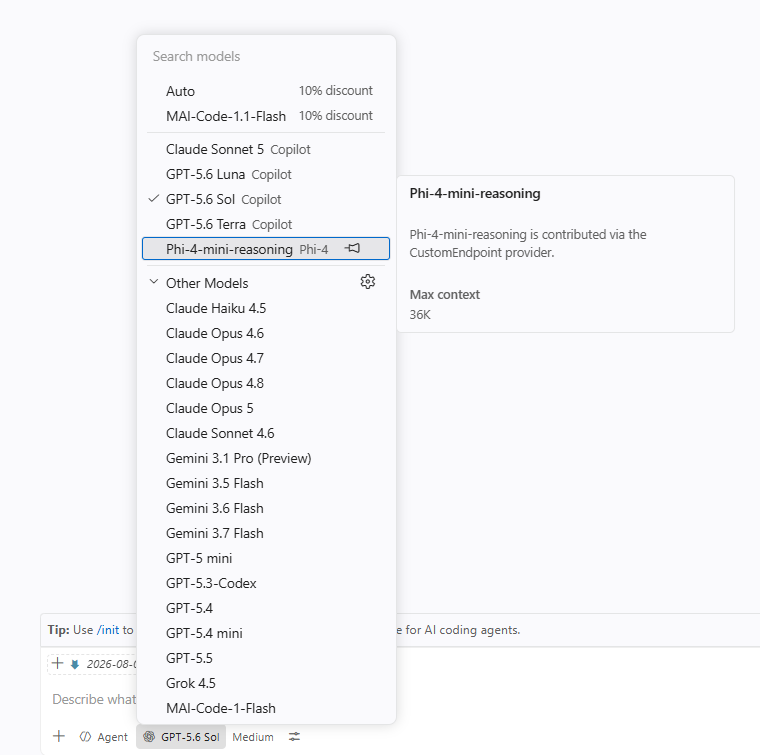
Configure the local model provided by llama.ccp server in Visual Studio Code:
With the llama.cpp server still running, open this user configuration file:
1
 C:\Users\stefstr\AppData\Roaming\Code\User\chatLanguageModels.json
Add a custom endpoint entry. The following example is suitable for a text-only Phi-4 model:
[
  {
    "name": "Copilot",
    "vendor": "copilot",
    "settings": {
      "mai-code-1-flash-internal": {
        "reasoningEffort": "high"
      },
      "claude-sonnet-4.6": {
        "reasoningEffort": "medium"
      }
    }
  },
  {
    "name": "Phi-4 Local",
    "vendor": "customendpoint",
    "apiType": "chat-completions",
    "models": [
      {
        "id": "phi-4-mini-reasoning",
        "name": "Phi-4 Mini Reasoning",
        "url": "http://127.0.0.1:8080",
        "toolCalling": true,
        "vision": false,
        "maxInputTokens": 32000,
        "maxOutputTokens": 4096,
        "maxTotalTokens": 32768
      }
    ]
  }
]
Use a maxInputTokens value that matches the server’s -c setting. ThemaxTotalTokens value should not exceed the sum of the input and output limits. If the model does not support tool calling reliably, set toolCalling tofalse.
After saving the file:
- Keep the llama.cpp server running.
- Reload or restart VS Code if the model does not appear immediately.
- Open the Chat model picker.
- Select the local model under the custom endpoint provider.
- Send a short text request before testing tools or images.
- The id should identify the model served by the endpoint. If VS Code does not accept the configured model, compare it with the model identifier returned by GET /v1/models and use that identifier.
MCP-Explorer
The last tool I want to discuss is the MCP-Explorer tool again from Simon Willison. This is one of the tools I used while developing MCP Servers. I have developed quite some MCP Servers, see my Github Repo for more information. Again there are other MCP tools that can help during the development of MCP Servers like MCP Inspector but again I like to use commandline tools where ever possible. I like it so much that I (with the help of Github Copilot) a Pull Request to support custom headers and bearer token authentication.
MCP-Explorer Tips:
Install the tool with UV 😁:
uv pip install mcp-explorerUse MCP-Explorer with legacy MCP Servers:
mcp-explorer list http://localhost:8081/mcp --legacyThe Model Context Protocol (MCP) has undergone a significant change with the 2026-07-28 specification, which introduces a stateless protocol core. This means that the handshake and session ID are removed, allowing for horizontal scaling without the need for a shared session store.
So if you have developed MCP Servers (like I did) using the ‘legacy’ specification, you need to use this argument.
I hope you enjoyed reading this blog about the AI tools I currently use. Let me know in the comments what (commandline) tools you are using in your AI day to day work.